Quick Start
Requires NinjaTrader Desktop 8.1.5.0 or later on Windows. Update NinjaTrader before importing if your installed version is older.
Quick Reference
Price Axiom Cognitive Hub — Quick Start
Before you start
Requires NinjaTrader Desktop 8.1.5.0 or later on Windows. Update NinjaTrader before importing if your installed version is older.
1. Enter your email for activation
Before doing anything else, ensure the email to be used for the activation of the product has been updated inside your Price Axiom account, this email should be the same email as your NinjaTrader account email, the one used to log in to NinjaTrader. You can update the email once every 24 hrs.
You can assign the NinjaTrader email to your account by logging in to your www.priceaxiom.com account, then navigating to the 'My Products' section and entering the email in the product activation card.
You can also download the product from that same 'My Products' section.
2. Import the package into NinjaTrader
Use the standard NinjaTrader import process for third-party NinjaScript products once you have downloaded the package.
General flow:
- Open NinjaTrader.
- Go to Tools → Import → NinjaScript Add-On.
- Select the Price Axiom Cognitive Hub package from your download location.
- Approve the package usage if prompted by NinjaTrader.
- Let NinjaTrader complete the import, then reopen any windows if needed.
3. Add Cognitive Hub to a chart
Open the chart you want to work from, then add the Cognitive Hub indicator to that chart just like a normal NinjaTrader indicator, by selecting the Indicators menu then navigating to the PriceAxiom folder and choosing Cognitive Hub.
4. Review the product setup settings
You do not need to customize anything before using the product but you can optionallly review these settings for awareness:
- Settings Folder Path under Settings, shows where your configuration and logs are stored.
- optional display settings such as color theme under Display, panel window size and location, background color, minimized hub button behavior
- optional Auto-capture screenshots and alert settings
A good default approach is to just update the activation email and then leave most visual parameters alone on first launch and only change what you truly need, then explore the product and learn it at your own pace.
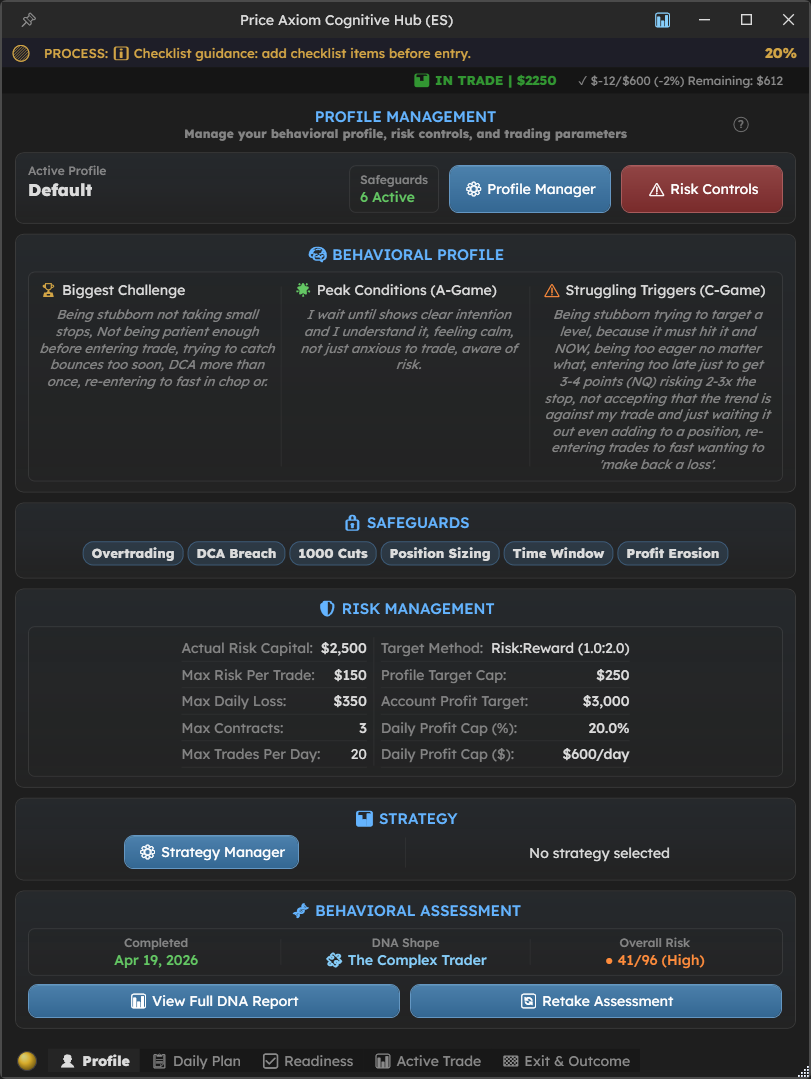
Once added, the hub can be opened from the chart workflow and used as your main process layer for:
- Profile
- Daily Plan
- Readiness
- Active Trade
- Exit & Outcome
The Journal is then used as the long-term review layer after trades are saved.
5. Create or load your trading profile
Open the main hub window and start on Profile.
This is where you define the baseline rules that the rest of the workflow depends on, including:
- your behavioral notes
- account limits
- max risk per trade
- max daily loss
- max contracts
- max trades per day
- target method and related limits
- strategy references
If you already have a saved profile you can load it. Otherwise, create one simple working profile first and refine it later.
6. Build a simple Daily Plan
Go to Daily Plan before trading.
For your first pass, keep it simple:
- choose a higher time frame bias
- write a short plan narrative
- note any important news or session times
- add the few support and resistance levels that actually matter
- plot levels to the chart if needed
Do not try to document everything. The goal is to create usable structure before the session begins. You can also save and load plans, but the most important thing is to validate a simple plan before trading and get used to that process.
7. Use Readiness before every trade
Before entering, move to Readiness and confirm:
- the active account is correct
- no important restriction or hard block is active
- your checklist is reasonably complete
- the trade still fits your rules
- position sizing and risk awareness still make sense
This is the point where the platform helps answer the real question: am I actually ready to take this trade within my rules?
8. Plan and manage the trade
Use the planning controls to define the trade structure.
Typical first-session usage:
- select a Ninjatrader ATM
- set or track the price
- use Long or Short planning
- show planning on chart if desired and make planning adjustments
- monitor the trade in Active Trade once filled
During the trade, the hub can help surface live context such as P&L, warnings, action history, and manual management behavior.
9. Complete the recap in Exit & Outcome
When the trade closes, move to Exit & Outcome and save a useful recap.
For a practical first review, add:
- a short note about what happened
- any important tags
- a screenshot if useful, you can also add external screenshots from your computer.
- a quick self-evaluation of execution and discipline
This is what turns a finished trade into something reviewable later.
10. Review the trade in the Journal
Open the Journal to review saved trades over time.
The main journal views are:
- Dashboard for performance widgets and patterns
- Trade History for record-level review
- Calendar for day-by-day rhythm
- Symbol Stats for instrument-level breakdown
You do not need to master every journal view on day one. Just confirm that your trade is saved and visible.
11. Back up your settings and logs
Use the About / Info area to back up:
- configuration
- trade logs
- support package data
This is especially worth doing after your initial setup is stable.
12. Initial release note
Price Axiom Cognitive Hub is being launched as an initial public release. The current version is intended to provide a complete core workflow for preparation, readiness, active-trade awareness, and post-trade review.
As early users begin working with it in live environments, refinements and quality-of-life improvements may continue over time, especially in deeper review and journal-related workflows. If you encounter a bug, unclear behavior, or have a suggestion, please report it. Early feedback helps prioritize stability improvements, usability refinements, and future feature work.
First-session checklist
If you want the shortest path to first use, do these in order:
- Update your email inside your Price Axiom account.
- Go to Ninjatrader and import the package.
- Open a chart and select the PriceAxiom-> Cognitive Hub indicator.
- On the Indicator Main Window, create a profile.
- Set a simple daily plan.
- Use Readiness before a trade.
- Review the result in Exit & Outcome.
- Confirm the trade appears in the Journal.
Still have a question?